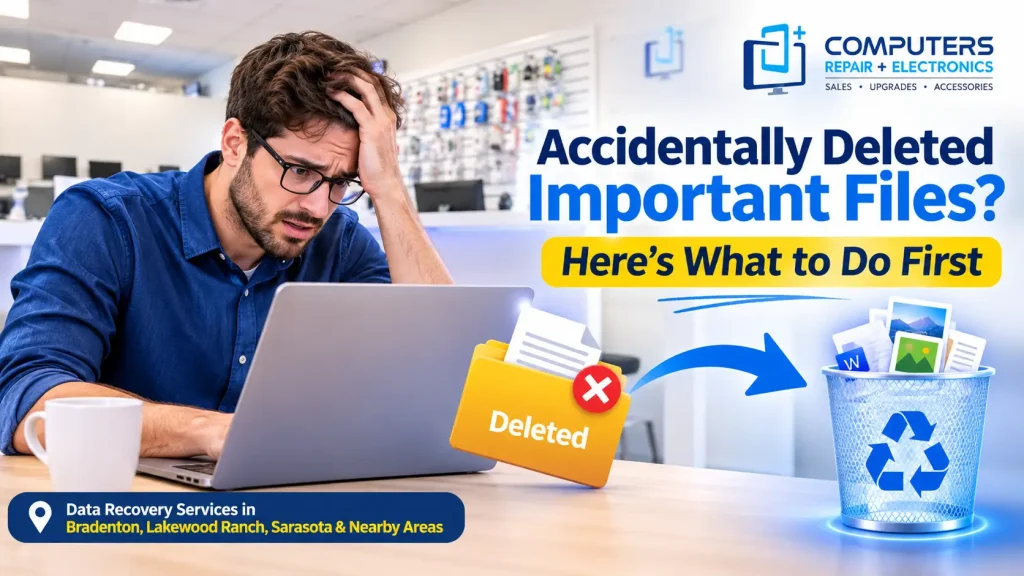
Accidentally deleting an important file can happen in seconds. You might remove the wrong folder, empty the Recycle Bin, delete business documents while cleaning up storage, or lose photos after a system error.
The first reaction is often to search for recovery software and try to get everything back immediately. But before installing anything, take a moment. The actions you take after deleting a file can affect whether that information is recoverable.
In many situations, deleted files may still be recoverable. However, the result depends on the storage device, how the files were deleted, whether new data has overwritten them, and whether the drive is functioning properly.
If you are looking for deleted file recovery Bradenton, this guide explains what to do first, which recovery options to check, and when professional help may be the safer choice.
Computers Repair Plus provides data recovery and backup services for computers, laptops, SSDs, USB flash drives, memory cards, and other storage devices. Customers in Bradenton, Lakewood Ranch, Sarasota, and nearby communities can contact the team to discuss lost files and possible recovery options.
First: Stop Using the Device
If you accidentally deleted important files, the most important first step is to avoid unnecessary activity on the affected storage device.
When a file is deleted, the operating system may mark its storage space as available for new data. The original information may remain temporarily, but new files or system activity can overwrite it.
This means that actions such as downloading software, installing applications, copying large files, or continuing normal computer use may reduce the chances of recovery.
Take these precautions:
- Stop saving new files to the affected drive.
- Avoid installing recovery software on that same drive.
- Do not download large updates or applications.
- Avoid formatting or repartitioning the storage device.
- Do not save recovered files back to the original drive.
If the drive is making clicking or grinding noises, repeatedly disconnecting, or showing signs of physical failure, shut it down and seek professional advice instead of attempting software recovery.
1. Check the Recycle Bin or Trash
Before trying advanced recovery methods, check the simplest location first.
On Windows
- Open the Recycle Bin from your desktop.
- Look for the deleted file or folder.
- Use the search option if there are many items.
- Right-click the correct item.
- Select Restore.
The file should return to its original location if it is still available in the Recycle Bin.
On Mac
- Open the Trash from the Dock.
- Find the deleted file.
- Right-click the file.
- Select Put Back.
This restores the file to its previous location when available.
Important: Files deleted using certain permanent-delete commands, from removable storage, or from some applications may not appear in the Recycle Bin or Trash.
2. Check Your Cloud Storage and Backup Services
If you use cloud storage, the deleted file may still be available through its recovery features.
Check the account and device where the file was originally stored.
Google Drive
Google Drive has a Trash section where deleted files may remain temporarily before permanent removal.
Open Google Drive, select Trash, locate the file, and use Restore if it is available.
Microsoft OneDrive
Check the OneDrive Recycle Bin through your account. If you use OneDrive for business, your organization’s retention and recovery settings may also affect how long deleted items remain available.
iCloud Drive
Apple users can check iCloud Drive and its recently deleted recovery options. Availability depends on the type of content and how long ago it was deleted.
Other Backup Locations
Also consider checking:
- External hard drive backups
- USB flash drives
- Network storage
- Another computer synced with the same account
- Previous versions of files
- Business backup systems
Do not assume that a file is permanently lost just because it is missing from one device.
3. Check Previous Versions and File History
Windows and other operating systems may have backup or version-history features that allow you to restore earlier copies of files.
For Windows users, File History may help if it was enabled and configured before the deletion.
You can also check whether the folder has previous versions available:
- Open File Explorer.
- Navigate to the folder where the file was stored.
- Right-click the folder.
- Select Properties.
- Look for the Previous Versions tab.
If a suitable version exists, review it before restoring anything.
For business documents, check whether your organization uses Microsoft 365 version history or another managed backup service.
These options only work when the relevant backup or versioning feature was active before the file was deleted.
4. Can Permanently Deleted Files Be Recovered?
Sometimes, yes.
The word “permanently deleted” does not always mean that every part of the file has immediately disappeared from the storage device.
Recovery may still be possible if the deleted information has not been overwritten and the storage device remains accessible.
However, several factors affect the result:
- Storage type: HDDs and SSDs handle deleted data differently.
- Time since deletion: Continued use may increase the chance of overwriting.
- New data: Saving files to the same device can replace previously deleted information.
- Deletion method: Emptying the Recycle Bin, formatting a drive, or using secure deletion can affect recovery.
- Device condition: Hardware damage may require a different recovery approach.
There is no universal method that can restore every permanently deleted file. A proper assessment helps determine whether recovery is realistic.
5. Does File Recovery Work Differently on HDDs and SSDs?
Yes. The type of storage device matters.
Hard Disk Drives (HDDs)
Traditional hard drives store information on magnetic platters.
When a file is deleted, its storage space may be marked as available while the underlying information remains until overwritten.
This can sometimes make recovery possible.
However, if the HDD is clicking, grinding, or experiencing mechanical problems, avoid running recovery scans. Continued activity may cause additional damage.
Solid-State Drives (SSDs)
SSDs use flash memory and manage stored information differently.
Many SSDs support a feature called TRIM, which helps the drive manage unused storage blocks. After deletion, TRIM may cause the relevant data to become unavailable for recovery.
This means that deleted files on an SSD can sometimes be harder to recover than files on a traditional HDD.
The outcome depends on the SSD, its settings, the operating system, and how much time has passed.
If the deleted files are important, avoid writing new data to the SSD and get advice before experimenting with recovery tools.
6. Should You Use Free Data Recovery Software?
Recovery software can help with certain types of logical data loss, but it is not the right solution for every situation.
It may be useful when:
- Files were accidentally deleted.
- The storage device is healthy and accessible.
- The problem involves certain file system errors.
- The software can scan the affected device without writing to it.
However, there are situations where using software can create additional problems.
Avoid attempting a software scan when:
- The drive makes unusual clicking or grinding noises.
- The device repeatedly disconnects.
- The computer cannot detect the storage device.
- The drive becomes extremely slow or freezes during access.
- You suspect physical or electrical damage.
Also, never install recovery software onto the same drive from which you are trying to recover deleted files. If recovery is attempted, recovered files should be saved to a separate, healthy storage device.
7. When Should You Contact a Professional Data Recovery Service?
Consider professional help when the deleted information is valuable and the basic recovery options do not work.
This is particularly important for:
- Business records and financial documents
- Customer information
- Work projects and databases
- Family photos and videos
- Important legal or administrative files
- Files stored on damaged or inaccessible drives
A professional assessment can help identify whether the problem involves accidental deletion, file system corruption, a failing drive, or another storage issue.
Computers Repair Plus offers data recovery and backup services for PCs, laptops, SSDs, RAID drives, USB flash drives, and memory cards.
The business also works with different operating systems, including Windows, macOS, Android, Linux, and server operating systems.
Learn more about its Data Recovery and Backup Services.
Recovery is not guaranteed, and the outcome depends on the condition of the device and the state of the deleted data. Getting advice before further attempts can help avoid unnecessary risks.
8. How to Prevent Important Files From Being Lost Again
Once you recover your files or determine which information is still available, set up a reliable backup routine.
Here are practical steps for protecting personal and business data:
- Use automatic cloud backups: Configure a trusted cloud service to back up important folders.
- Keep an external backup: Store a separate copy of important files on an external drive.
- Follow the 3-2-1 backup approach: Keep three copies of important data, on two different types of storage, with one copy stored off-site.
- Check your backups: Occasionally test whether files can actually be restored.
- Use clear folder names: Organize important documents to reduce accidental deletion.
- Protect business data: Make sure critical work files are included in a documented backup plan.
A backup is only useful if it works when you need it. Periodically checking your backup files is just as important as creating them.
Where to Get Deleted File Recovery in Bradenton, FL
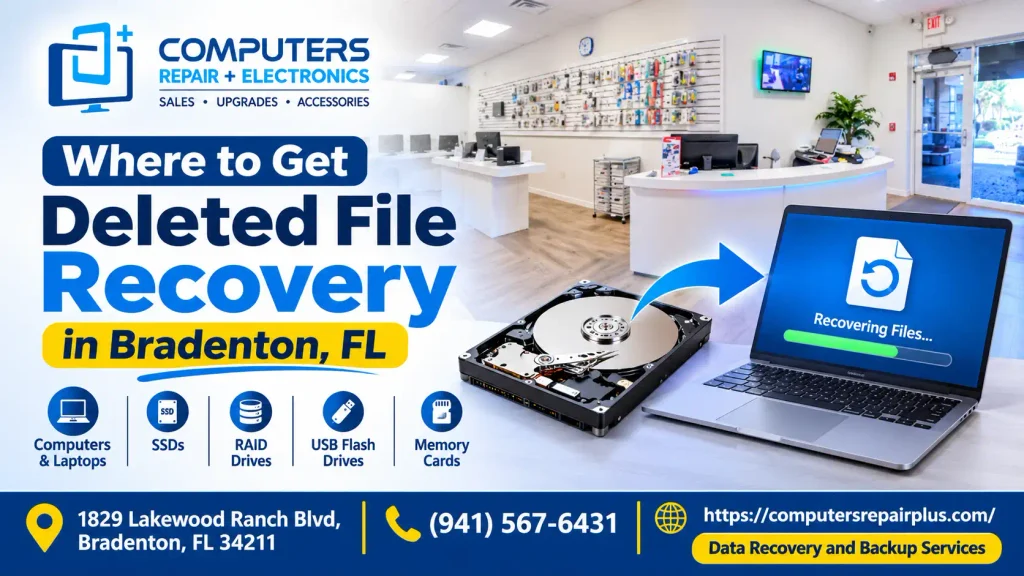
If you have accidentally deleted important files and cannot restore them through the Recycle Bin, Trash, or an existing backup, Computers Repair Plus can help you explore available data recovery options.
The business serves customers in Bradenton, Lakewood Ranch, Sarasota, and surrounding communities. Its data recovery service covers computers, laptops, SSDs, RAID drives, USB flash drives, memory cards, and other storage devices.
Computers Repair Plus
Address: 1829 Lakewood Ranch Blvd, Bradenton, FL 34211
Phone: (941) 567-6431
Website: https://computersrepairplus.com/
For help with lost files, visit the Data Recovery and Backup service page or contact Computers Repair Plus.
Before bringing in your device, avoid saving new files to the affected storage device. If it shows signs of physical failure, stop using it and explain the symptoms when you contact the team.
Frequently Asked Questions
1. Can I recover files after emptying the Recycle Bin?
Sometimes. Recovery may be possible if the deleted data has not been overwritten and the storage device is still accessible. The result depends on the device and deletion circumstances.
2. Can permanently deleted files be recovered without software?
Yes, in some situations. You may be able to restore files from cloud storage, backups, File History, or previous versions without using recovery software.
3. Should I keep using my computer after deleting important files?
If the files were stored on the computer’s internal drive, minimize activity on that drive. Avoid downloads, installations, and unnecessary file transfers because new data may overwrite deleted information.
4. Can deleted files be recovered from an SSD?
Sometimes, but SSD recovery can be more challenging because of TRIM and other storage-management features. Stop writing new data to the SSD and seek advice if the files are important.
5. Is free data recovery software safe?
It depends on the software and the condition of the drive. Some tools can help with logical deletion, but avoid running scans on a physically failing drive or installing software on the affected storage device.
6. Where can I get deleted file recovery in Bradenton?
Computers Repair Plus provides data recovery and backup services at 1829 Lakewood Ranch Blvd, Bradenton, FL 34211. Call (941) 567-6431 to discuss your lost files and possible recovery options.