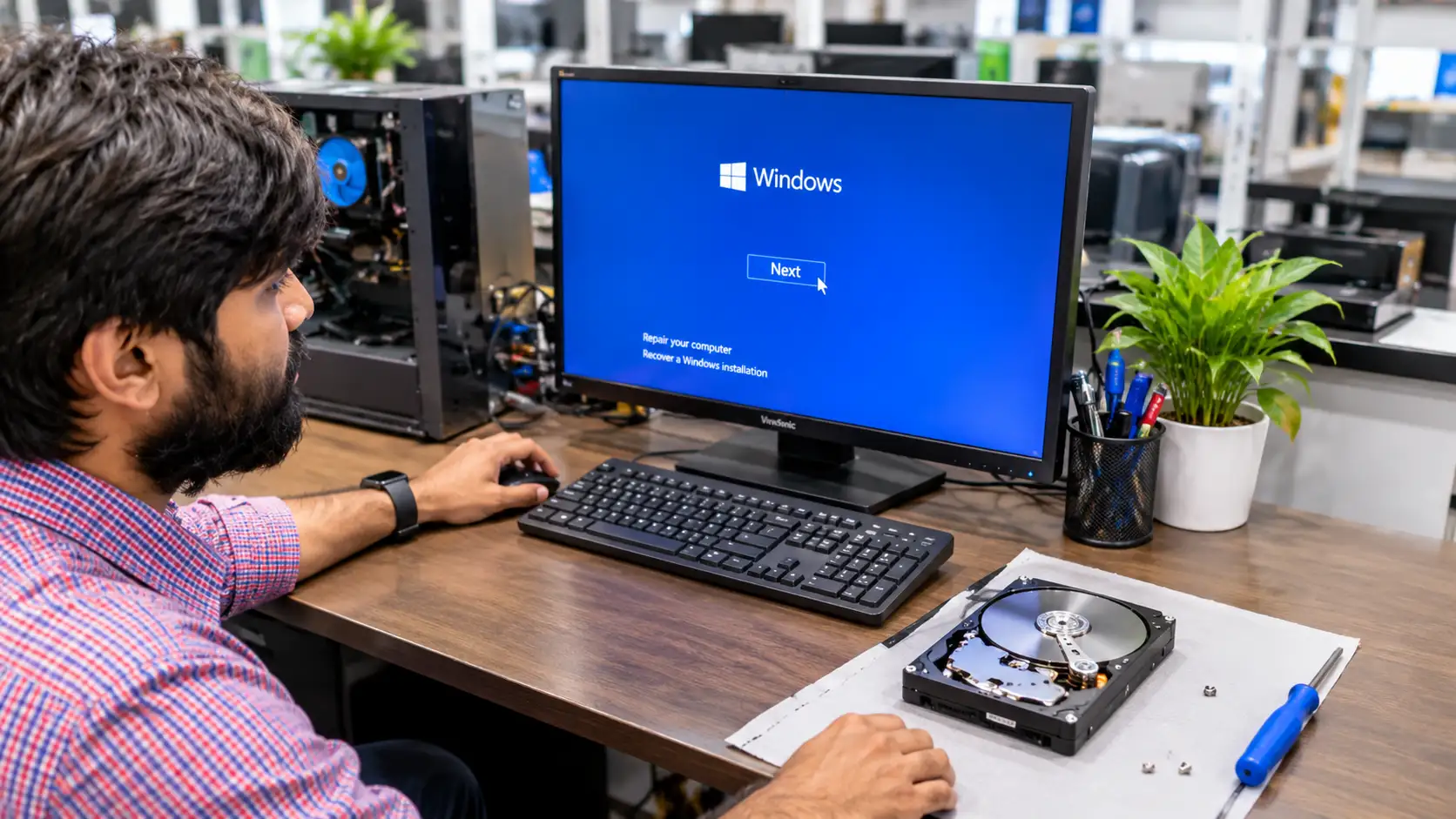
A clicking sound coming from your computer or external hard drive can be worrying, especially when the device contains important photos, business documents, or personal files. You may hear a repeated clicking noise during startup, notice that your computer takes longer to load, or find that the drive suddenly stops responding.
Sometimes, a hard drive makes ordinary operating noises. However, repeated loud clicking, tapping, or grinding can indicate a serious mechanical problem, particularly when the drive is also failing to open files or is no longer detected.
The most important thing is knowing when to stop using the device. Continuing to run a physically damaged hard drive may make data recovery more difficult.
If you are searching for hard drive data recovery Bradenton, this guide explains what clicking may mean, what actions to avoid, and how to protect your information.
Computers Repair Plus provides data recovery and backup services for customers in Bradenton, Lakewood Ranch, Sarasota, and nearby communities. If your drive is making unusual noises, contact the team before attempting repeated repairs.
Why Is Your Hard Drive Making a Clicking Noise?
Traditional hard disk drives (HDDs) contain spinning magnetic platters and moving read/write heads. These components work together to store and retrieve information.
A clicking noise can happen when the drive’s internal mechanism is having difficulty operating correctly.
One possible cause is a problem with the read/write heads. These components move across the platters to access stored information. If they cannot operate properly, the drive may repeatedly attempt to read data, producing a noticeable clicking sound.
Other possible causes include:
- Damaged read/write heads
- Mechanical wear or internal component failure
- Problems with the drive’s power supply
- Firmware-related issues
- Physical damage from dropping or impact
Not every click means the drive is failing. Some drives produce normal clicking or chatter during ordinary read/write activity. The pattern, loudness, and accompanying symptoms matter.
According to Seagate’s guidance on hard drive noises, repeated abnormal clicking and grinding should be treated differently from ordinary operating sounds. Read Seagate’s hard drive troubleshooting guidance.
5 Warning Signs That Clicking May Indicate Hard Drive Failure
A clicking sound becomes more concerning when it appears alongside other problems.
1. Repeated Clicking During Startup
If the drive clicks repeatedly when you turn on your computer, it may be struggling to initialize or access stored information.
Pay attention if the computer also freezes, displays a boot error, or takes unusually long to start.
2. Computer Cannot Detect the Drive
A failing hard drive may disappear from File Explorer, Disk Management, or the computer’s startup device list.
An external drive may also connect and disconnect repeatedly.
Although connection or power problems can cause similar symptoms, clicking combined with detection problems deserves immediate attention.
3. Files Take Too Long to Open
You might notice that documents, photos, or folders take much longer to load than usual.
The computer may freeze when accessing specific files or stop responding during file transfers.
These symptoms can have several causes, but they may indicate that the storage device is struggling.
4. Clicking Followed by Grinding or Beeping
A loud, repetitive clicking or grinding sound is more concerning than occasional soft operating noise.
Grinding may indicate mechanical contact or other serious internal damage. If you hear grinding, power down the drive rather than continuing to test it.
5. Missing Files or Unexpected Errors
A failing drive may cause files to become inaccessible, transfers to fail, or applications to display read errors.
Do not assume that missing files are permanently gone. However, avoid writing new information to the affected drive until the problem has been evaluated.
What Should You Do Immediately When a Hard Drive Clicks?
Your response can affect whether important information remains recoverable.
Step 1: Stop Using the Drive
If the clicking is loud, repetitive, or accompanied by freezing or detection problems, stop using the drive.
For an internal drive, shut down the computer. For an external drive, disconnect it after powering it down safely if possible.
Avoid repeatedly switching it on to see whether the sound disappears. If the drive has a mechanical problem, continued operation may cause additional damage.
Step 2: Do Not Run Disk Repair Commands
Avoid running CHKDSK, repair utilities, or other intensive scanning tools on a drive that may have mechanical damage.
These tools can be useful for certain logical problems, but they are not a substitute for diagnosing a physically failing drive. Additional activity can make recovery more difficult.
Step 3: Do Not Format or Initialize the Drive
If Windows asks you to format the disk, do not accept the prompt if you need the stored files.
Formatting or changing partitions can complicate recovery, particularly if new information is written to the device.
Step 4: Avoid Opening the Hard Drive
A traditional HDD contains sensitive internal components. Opening its sealed enclosure outside an appropriate controlled environment can expose the platters to contamination and cause further damage.
Do not attempt to adjust the read/write heads or repair internal components yourself.
Step 5: Seek Professional Data Recovery Advice
If the drive contains valuable information, have its condition evaluated before attempting further troubleshooting.
For customers looking for hard drive data recovery in Bradenton, Computers Repair Plus can help assess storage problems and discuss available data recovery options.
Can Data Be Recovered From a Clicking Hard Drive?
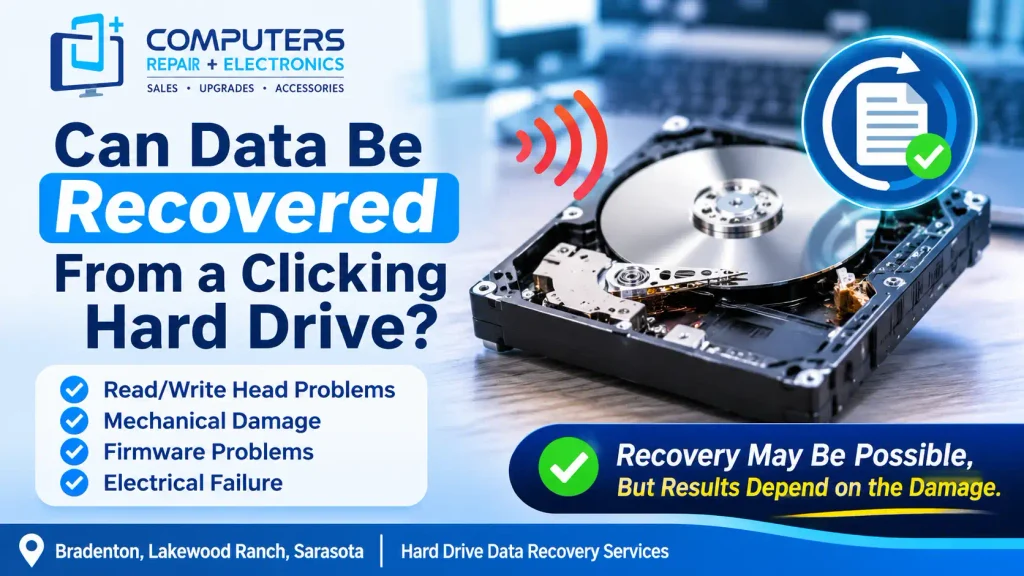
Yes, recovery may still be possible, but it depends on the type and severity of damage.
A clicking drive does not automatically mean that every file has been destroyed. In some situations, the stored information may remain on the platters even though the drive can no longer operate normally.
However, recovery becomes more complicated when internal components are damaged.
Possible situations include:
- Read/write head problems: The drive may be unable to access stored information correctly.
- Mechanical damage: Internal components may require specialized recovery procedures.
- Firmware problems: The drive may not communicate properly with the computer.
- Electrical failure: Damaged electronic components may prevent the drive from powering up or responding.
A professional evaluation helps determine whether recovery is practical and which approach may be appropriate.
No responsible recovery provider should promise that every file can be retrieved. Results depend on the drive’s condition and the extent of damage.
Can You Fix a Clicking Hard Drive at Home?
It depends on what is causing the sound.
If an external drive is making an unusual noise, a damaged cable or power adapter may sometimes be responsible. However, if the drive itself is producing repeated loud clicking, grinding, or other abnormal sounds, do not assume that changing cables will solve the problem.
If the data is important, avoid experimenting with different repair methods.
In particular, do not:
- Put the hard drive in a freezer.
- Hit, shake, or drop the drive.
- Open its sealed enclosure.
- Keep restarting it to test whether it works.
- Run repeated recovery scans on a mechanically failing drive.
- Save recovered files back onto the affected drive.
These actions can increase the risk of further damage or make recovery more difficult.
HDD vs. SSD: Does Clicking Mean the Same Thing?
No. Traditional HDDs and solid-state drives use different technologies.
Traditional Hard Disk Drive (HDD)
An HDD contains moving mechanical components, so physical clicking or grinding may originate from its internal mechanism.
Repeated abnormal clicking can indicate a mechanical issue that requires professional attention.
Solid-State Drive (SSD)
An SSD uses flash memory and has no spinning platters or moving read/write heads.
Therefore, a physical clicking sound is not normally produced by the SSD itself. If you hear clicking from a computer with an SSD, the noise may be coming from a fan, another component, or a separate storage device.
If an SSD disappears or stops responding, it may have a controller, firmware, electrical, or file system problem instead.
Identifying the actual storage device making the sound is an important part of diagnosis.
What If Your External Hard Drive Is Clicking?
External hard drives can develop problems involving the drive mechanism, USB connection, power supply, or enclosure.
If your external drive clicks and disconnects repeatedly, stop trying to transfer files.
You can note the following details for a technician:
- Whether the drive is powered by USB or a separate adapter
- Whether the clicking starts immediately after connection
- Whether the computer detects the drive
- Whether the device was recently dropped
- Whether the problem started after a power interruption
These details can help narrow down the issue without requiring repeated testing.
If the files are important, keep the device in its current condition and seek professional advice.
Where to Get Hard Drive Data Recovery in Bradenton, FL
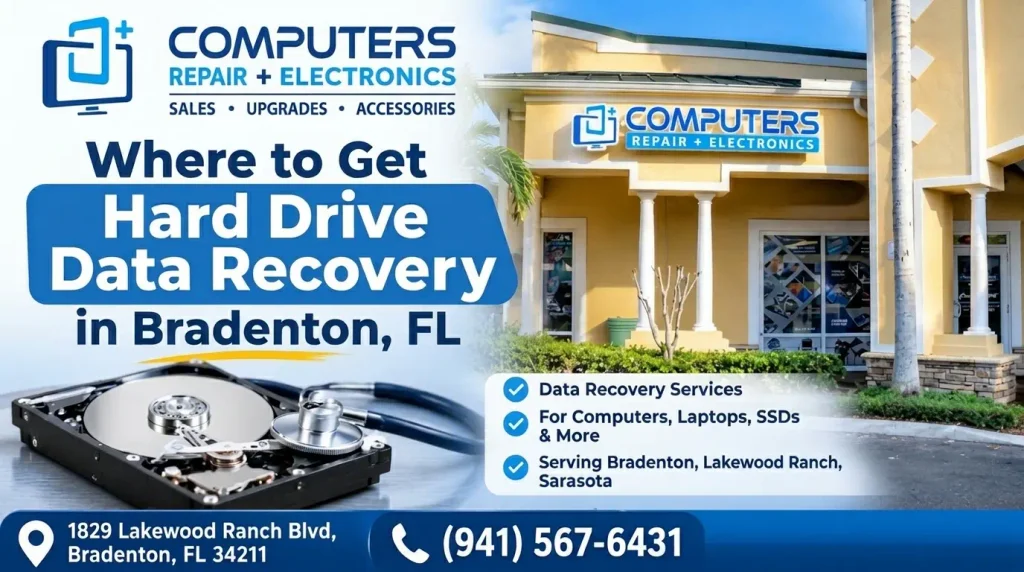
A clicking hard drive should not be treated like an ordinary slow computer. If the noise indicates mechanical failure, protecting the stored information should come before trying to make the device work again.
Computers Repair Plus offers data recovery and backup services for individuals and businesses in Bradenton, Lakewood Ranch, Sarasota, and surrounding areas.
The business provides assistance with storage-related data loss involving computers, laptops, SSDs, RAID drives, USB flash drives, and memory cards.
Computers Repair Plus
Address: 1829 Lakewood Ranch Blvd, Bradenton, FL 34211
Phone: (941) 567-6431
Website: https://computersrepairplus.com/
Visit the Data Recovery and Backup service page to learn more, or contact Computers Repair Plus to discuss your hard drive problem.
If your drive is clicking, grinding, or repeatedly disconnecting, avoid further attempts to access it until you have discussed the symptoms with a technician.
Frequently Asked Questions
1. Does a clicking hard drive mean it is failing?
Not always. Some drives make normal operating sounds. However, loud, repeated clicking—especially with freezing, missing files, or detection problems—may indicate a serious issue.
2. Should I turn off a clicking hard drive?
If the drive is making loud, repetitive clicking or grinding noises and may contain important data, stop using it and power it down. Continued operation can make mechanical damage worse.
3. Can files be recovered from a clicking hard drive?
Sometimes. Recovery depends on the type and extent of internal damage. The drive should be evaluated before attempting software repairs or repeated restarts.
4. Can I use recovery software on a clicking hard drive?
It is generally not advisable when mechanical failure is suspected. Recovery software cannot repair damaged internal components, and continued drive activity may make recovery more difficult.
5. Why is my external hard drive clicking but not showing up?
Possible causes include power or connection problems, firmware issues, or internal mechanical failure. If the clicking is loud or repetitive, stop reconnecting the drive and seek professional advice.
6. Where can I get hard drive data recovery in Bradenton?
Computers Repair Plus provides data recovery and backup services at 1829 Lakewood Ranch Blvd, Bradenton, FL 34211. Call (941) 567-6431 to discuss your drive’s symptoms and possible recovery options.